
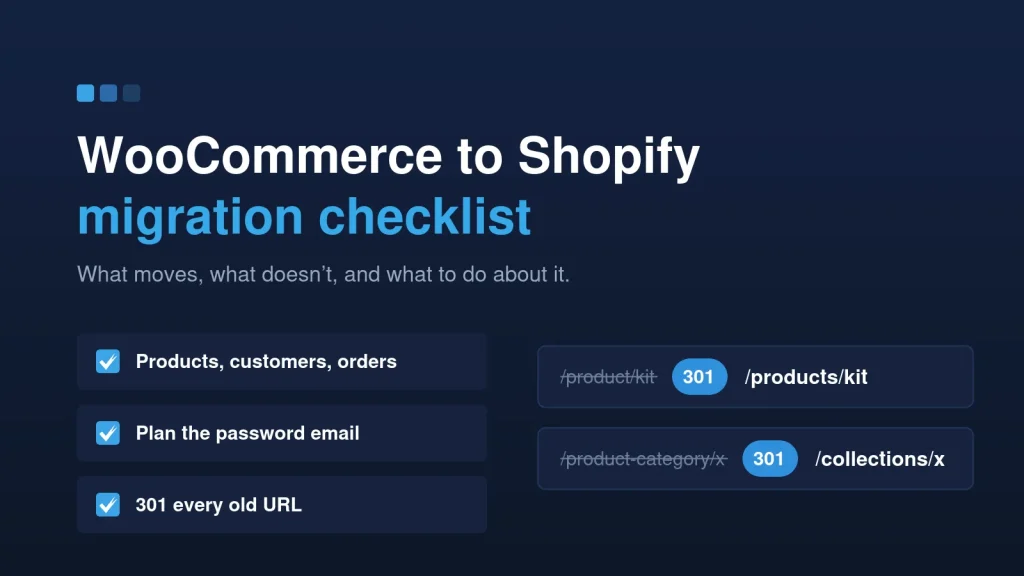
Moving from WooCommerce to Shopify is mostly a data job with a design job attached. The design gets the attention. The data decides whether customers can still log in, whether old orders are still there, and whether Google still sends traffic a month later.
This is the checklist we use. It covers what moves, what doesn’t, and the few places where stores usually lose something they didn’t expect to.
Before you start: should you move at all?
Not every slow or clunky WooCommerce store needs a new platform. If WooCommerce is doing the job and the real problem is speed, hosting or a bloated theme, fixing that is usually cheaper than migrating.
Moving makes sense when you’re spending more time maintaining the store than selling, when plugin updates keep breaking things, or when you need what Shopify does well: hosted checkout, Shopify Markets for selling across the EU, and a platform your team can run without a developer on call.
What moves
- Products and variants: titles, descriptions, prices, SKUs, inventory, weights and variant options. WooCommerce attributes map to Shopify options, and Shopify limits how many options a product can have, so complex products sometimes need restructuring.
- Collections and categories: WooCommerce categories become Shopify collections, manual or automated.
- Product images: including variant images, re-linked to the right variants.
- Customers: names, emails, addresses, tags and marketing consent.
- Order history: past orders come across through the Shopify Admin API or a migration tool such as Matrixify, so customers and your team keep their history.
- Blog posts and pages: content, images and metadata.
- Reviews: where your review app supports import. Check this early, because it depends entirely on the app.
What doesn’t move (and what to do about it)
- Customer passwords. Passwords can’t be transferred between platforms. With Shopify’s newer customer accounts, customers sign in with a one-time code sent to their email, so there’s nothing to reset. On classic accounts, they set a new password through an account invite. Either way, prepare a short, friendly email before launch.
- Plugin logic. Custom WooCommerce plugins don’t run on Shopify. Each one becomes an app, a theme feature or, for checkout rules, a custom app with Shopify Functions.
- Your URL structure. Shopify uses fixed paths:
/products/,/collections/,/pages/and/blogs/. Almost every WooCommerce URL changes, which is why redirects are the most important step on this list.
Redirects: the step that protects your rankings
- Export every URL that matters: the old sitemap, Search Console pages with impressions, and analytics landing pages.
- Map each one to its best new equivalent: product to product, category to collection, post to post.
- Import the map into Shopify’s URL redirects before launch.
- After launch, crawl the old URL list again and confirm every one returns a single 301 to the right page.
No catch-all redirects to the homepage. Google treats those like a missing page. We wrote up the full process in how to relaunch a website without losing SEO.
Taxes, payments and shipping
Set these up deliberately, not by copying old settings. For EU stores, that means VAT display (prices with or without tax), Shopify Markets for currencies and languages, and shipping zones per market. On Before Eight, reviewing VAT behavior during the Shopify setup was part of the migration, because pricing and checkout confusion is the fastest way to lose a returning customer.
Test migration first
Run the whole migration on a development store before touching the live one. Check product counts, a sample of variants, customer records, a few old orders and every redirect. Then rebuild the theme, product discovery (filters, search, collections) and checkout on top of real data, not placeholder products.
Launch and the 30 days after
- Switch the domain, publish the redirects and submit the new sitemap.
- Send the customer account email.
- Place real test orders with each payment method.
- Watch Search Console for 404s and coverage changes, and fix gaps in the redirect map as they show up.
Some ranking movement in the first weeks is normal while Google re-crawls. Permanent drops come from missing redirects or content that didn’t come across, and those are what the checklist prevents.
A real example
Before Eight started with improvements to its WooCommerce store and later moved to Shopify with us, including product and order migration, the VAT setup review and custom campaign buying flows carried across the switch. In their words: “He implemented all our wishes and also contributed his own creative ideas and solutions, and then moved the store to Shopify with us.”
The takeaway
A good migration is boring for your customers: same products, same order history, a sign-in email, and pages that are where Google expects them. Plan the data, map every URL, test on a development store, then launch.
Planning a move? See our WooCommerce to Shopify migration service. You get a fixed quote after a free store review.